
European Accessibility Act (EAA) Video Requirements
Is your Video Content Compliant with the European Accessiblity Act?
What Is the European Accessibility Act?
The European Accessibility Act (EAA) is an EU-wide directive designed to make key digital products and services accessible to everyone, including people with disabilities and older adults. It applies to everything from banking and e-commerce to transport and video content.
June 2022
The European Accessibility Act became law, giving businesses a clear runway to prepare.
June 2025
From 28 June, all new digital content and services in the EU must be fully accessible..
June 2030
A media service provider will need to backdate and make existing libraries accessible by 2030.
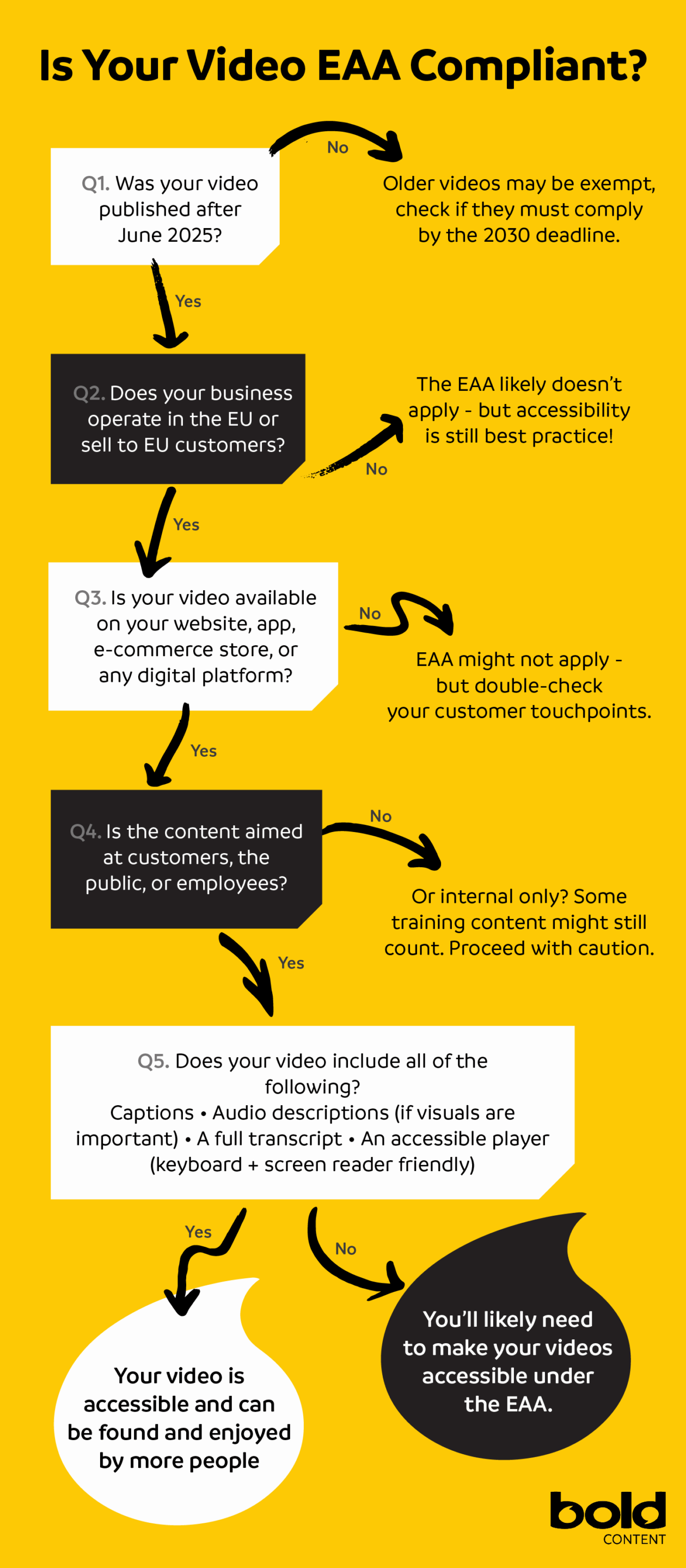
If your organisation operates in the EU and publishes video, this affects you.
How to Create Acessible Video Content That Everyone Can Use
If your videos live on a website, app, e-commerce store, or internal platform, they must be accessible to everyone – including users who are deaf, hard of hearing, blind, or have other disabilities.
That means your videos may legally need:
- Captions (for deaf and hard of hearing users)
- Audio descriptions (for blind and low-vision users)
- Transcripts (for screen readers and offline access)
- Accessible video players (keyboard-friendly, screen reader compatible)
- Sign language interpretation (in some cases)
At Bold Content, we make video content that doesn’t just look great – it works for everyone.
Why Video Accessibility Matters
Accessibility isn’t just a legal box to tick, it’s a smart business move.
Making your video content inclusive:
- Expands your audience – Over 100M people in the EU live with a disability
- Improves SEO – Captions and transcripts are indexable by search engines
- Enhances UX – Most users watch with the sound off
- Builds trust – Show your audience you care about inclusivity
Are there any exceptions?
Yes – but they’re limited.
You might be exempt if you:
- Are a micro-enterprise (fewer than 10 employees and < €2M turnover)
- Are sharing third-party content you don’t control or brand
Questions?
Video Accessibility Features and Best Practices
Use the toggles to discover how to make your videos EAA compliant.
Captions (SDH)
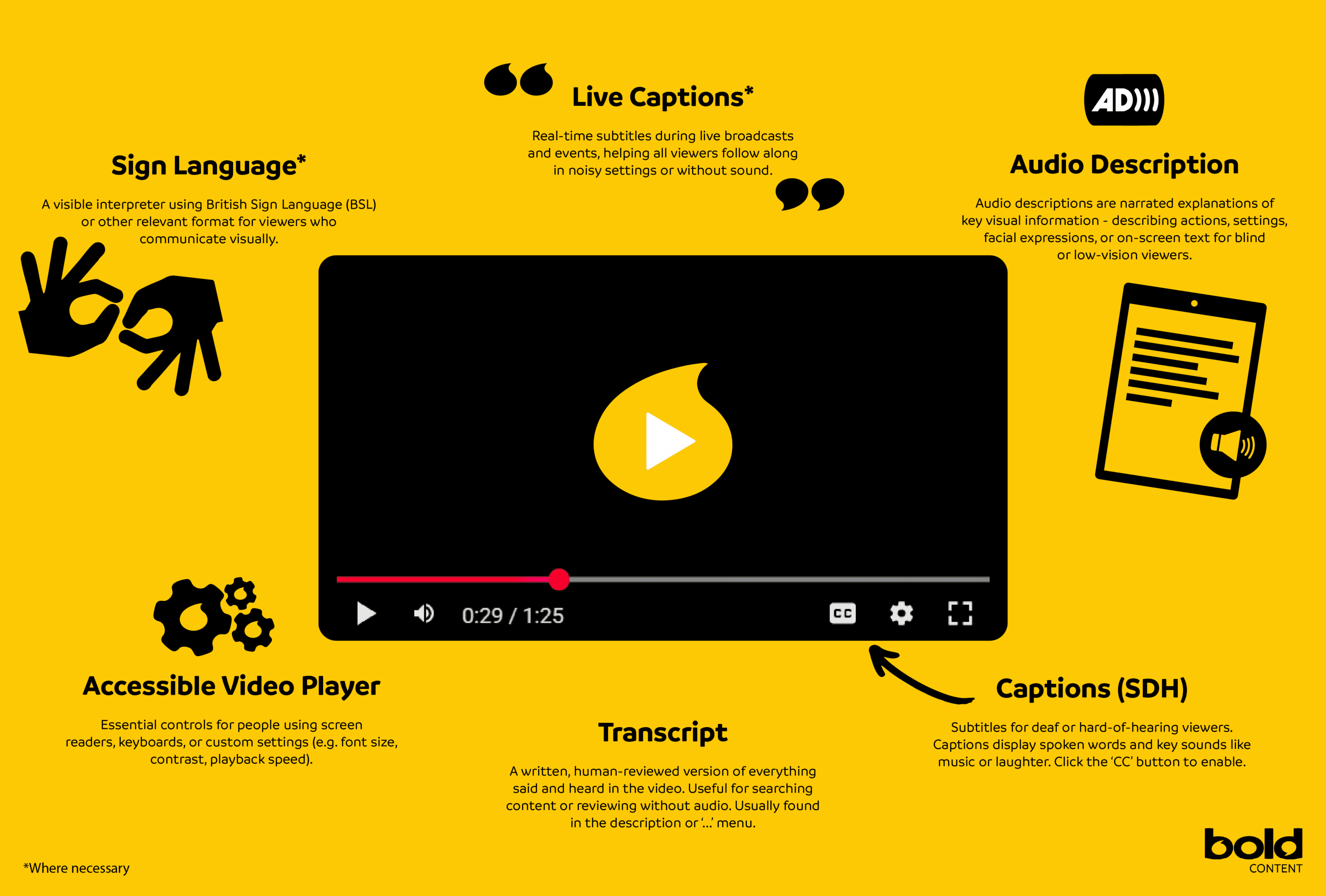
Subtitles for deaf or hard-of-hearing viewers. They include spoken dialogue and key sound effects (like music or laughter).
Where: Click the “CC” button on the video player.
Best Practice: Provide manually edited captions to ensure accuracy. Auto-captions often miss context, names, and punctuation.
Should I bake in subtitles?
Baked-in subtitles are permanently visible, while toggleable captions can be turned on or off.
Best Practice:
- Use toggleable captions for accessibility, they’re screen reader compatible, customisable (font size, colour), and support multiple languages.
Only bake in subtitles if:
- The platform doesn’t support captions
- You want them to appear consistently across social media (e.g. Instagram, LinkedIn)
- The video is heavily visual and must be understood without sound
Transcript
A full written version of everything spoken and heard in the video. Useful for screen readers and users who prefer to scan or search content.
Where: Add under the video in the description or link to a downloadable text file.
Transcript Best Practice:
- Manually type or review transcripts to ensure correct spelling, speaker labels, and punctuation
- Avoid relying solely on auto-generated transcripts, they often miss industry terms, names, and nuance
- Format for clarity: Use timestamps, paragraph breaks, and speaker names where helpful
Why it matters: Accurate transcripts improve accessibility for deaf users, screen reader users, non-native speakers, and also boost SEO
Audio Descriptions
Audio descriptions are narrated explanations of key visual information, describing actions, settings, facial expressions, or on-screen text for blind or low-vision viewers.
Audio Description Best Practice:
- Create a dedicated audio track that includes descriptions timed to fit natural pauses in dialogue
- Use a professional narrator with a clear, neutral tone to avoid distracting from the main audio
- Keep descriptions concise and relevant to what’s essential for understanding the story
Where it’s supported:
- YouTube: Not natively: workaround is to upload a second version of the video with audio descriptions included
- Vimeo: Supports audio description tracks via third-party plugins or alternate uploads
- Broadcast & streaming platforms: BBC iPlayer, Netflix, Disney+, and Amazon Prime all support AD through audio settings
- Social platforms: Instagram, LinkedIn, and TikTok currently do not support alternate audio tracks, use described video versions instead
Audio Description Workarounds:
- Create a version with AD baked in for platforms that don’t support alternate tracks
- Use captions to support visual-only content, but don’t rely on them alone — they don’t help blind users
- Label your described videos clearly in titles or descriptions (e.g. “with Audio Description”) so users know what to expect
Why it matters: Audio descriptions give blind and partially sighted users equal access to visual stories, and are a legal requirement for public sector and many commercial videos under accessibility guidelines.
Live Captions
Real-time subtitles during live broadcasts and events, helping all viewers follow along in noisy settings or without sound.
Where: Enabled during livestream setup; toggled by viewers via “CC”.
Best Practice: Use a live human captioner or a reliable captioning API to reduce delays and improve accuracy.
When Live Captions Are Necessary
- Public sector live streams (e.g. government announcements, council meetings)
- Educational content delivered live (e.g. webinars, university lectures)
- Live events where information is essential for public understanding (e.g. health updates, safety briefings)
- Online services in scope of the EAA (e.g. banking, ecommerce, transport) if offering live video content
Legal basis: Under EAA and in some countries (e.g. UK’s Equality Act), not providing captions may count as discrimination if no alternative is offered.
When Live Captions are Recommended
- Corporate webinars, product launches, or training
- Events targeting international or noisy environments, where users might prefer to read
- When targeting viewers with hearing loss or neurodiverse audiences
When Live Captions are Optional
- Internal team meetings or small-scale webinars not aimed at the public
- Informal social media livestreams where no significant information is conveyed
Sign Language Interpretation
A visible interpreter using British Sign Language (BSL) or other relevant format for viewers who communicate visually.
Where: Displayed in a corner of the video or as a picture-in-picture overlay.
Best Practice: Ensure the interpreter is well-lit, clearly framed, and not obscured by other visuals or overlays.
When Sign Language is Necessary
- Public-facing video content from government or public bodies
- Critical information such as:
- Health and safety updates
- Legal rights and policy changes
- Emergency broadcasts
- When targeting audiences that rely on sign language (e.g. Deaf community events)
Legal basis: In many EU countries, national accessibility laws require sign language for official government communications or essential services.
When Sign Language is Recommended
- High-visibility public events or campaigns
- Content aimed at inclusion, accessibility, or diversity
- Events where live interaction is available in BSL (e.g. Q&A sessions)
When Sign Language is Optional
- Content already well supported with captions and transcripts, and not essential to the public
- Audiences where sign language is not a known requirement
- Budget or space limitations, provided other accessible formats are available
Accessible Video Player Features
Essential controls for people using screen readers, keyboards, or custom settings (e.g. font size, contrast, playback speed).
Where: Built into accessible players like YouTube’s native interface or third-party compliant players.
Best Practice: Choose players that support keyboard navigation, ARIA labels, and customisation for captions and controls.
What Is Keyboard Navigation?
Keyboard navigation means users can control the video player using only their keyboard — without needing a mouse.
This is essential for:
- People with mobility impairments
- Blind users relying on screen readers
- Anyone using assistive technology or keyboard-only setups
Common functions include:
Tabto move between buttons (e.g. play, pause, volume)EnterorSpaceto activate buttons- Shortcuts like
Kfor play/pause,Ffor fullscreen,Cfor captions (on platforms like YouTube)
What Are ARIA Labels?
ARIA labels (Accessible Rich Internet Applications) are bits of hidden code that tell screen readers what each control does.
They help blind and low-vision users by:
- Announcing the purpose of buttons (e.g. “Play”, “Mute”, “Turn captions on”)
- Describing interactive elements like sliders, menus and toggle switches
- Giving context to custom controls that might otherwise be invisible to assistive tech
Without ARIA labels, a screen reader might just say “button” with no clue what it actually does.
Choosing a Video Player for Accessible Video: What You Need to Know
If you’re creating video content and want it to be accessible, here’s a breakdown
| Platform | What It Does Well | Where It Falls Short |
|---|---|---|
| YouTube | Free, easy to use, supports captions and screen readers | No support for audio description tracks, auto-captions often inaccurate |
| Vimeo | Clean player, customisable, good for business use | Doesn’t support alternate audio tracks, captions must be uploaded manually |
| Wistia | Marketing tools, transcripts, great analytics | No native support for audio description, accessibility depends on your setup |
These are popular and easy to use, but you’ll need workarounds for full accessibility, especially for blind users who need audio descriptions.
| Platform | Captions | Audio Description | Keyboard Navigation | Screen Reader Support | Notes |
|---|---|---|---|---|---|
| YouTube | Yes | Workaround only | Yes | Yes | Requires alternate version for AD |
| Vimeo | Yes | Workaround only | Yes | Yes | May need higher-tier plan for full customisation |
| Wistia | Yes | Workaround only | Yes | Yes | Strong caption and transcript tools, no native AD |
The Accessible-First Players
| Player | Why It’s Great | What to Consider |
|---|---|---|
| Able Player | Built specifically for accessibility. Supports captions, transcripts, audio description and sign language | Free, but you need a developer to set it up |
| Kaltura | Enterprise-level platform. Full accessibility tools, great for education or public sector | Powerful, but paid and more technical |
| Brightcove | Supports captions and audio description. High-end solution for big brands | Expensive and may be overkill for small projects |
| JW Player | Accessible controls and captions. Customisable with a developer | Requires some coding knowledge, no audio description built in |
| Video.js | Open-source and flexible. Can be made fully accessible | Needs tech skills to set up properly |
These tools are ideal if accessibility is a priority, especially for public sector, education, or anyone serious about compliance.
So, What’s the Best Option for You?
Just starting out or need something simple?
Use YouTube or Vimeo, but add captions manually and upload a separate version with audio description.
Want full control and long-term compliance?
Consider Able Player (with dev help) or Kaltura if you’re an organisation with accessibility obligations.
Need marketing tools and some accessibility?
Wistia can work well if you supplement it with good practices like clear transcripts and caption files.
Why Bold Content?
Scroll-stopping, high impact visual content
Tight Deadline? We provide can provide a fast turnaround when you need it
We manage the entire process from start to finish
We demonstrate ROI and drive measurable results
One team. one brief, everything handled in-house
Make Your Videos Work Harder for Everyone
Accessible videos don’t just meet legal requirements. They expand your audience, improve engagement and show you care about every viewer.
At Bold Content, we create inclusive video content that’s built to perform, and we can help you adapt what you already have too.
Reach more people. Meet the standard. Lead with inclusion.